
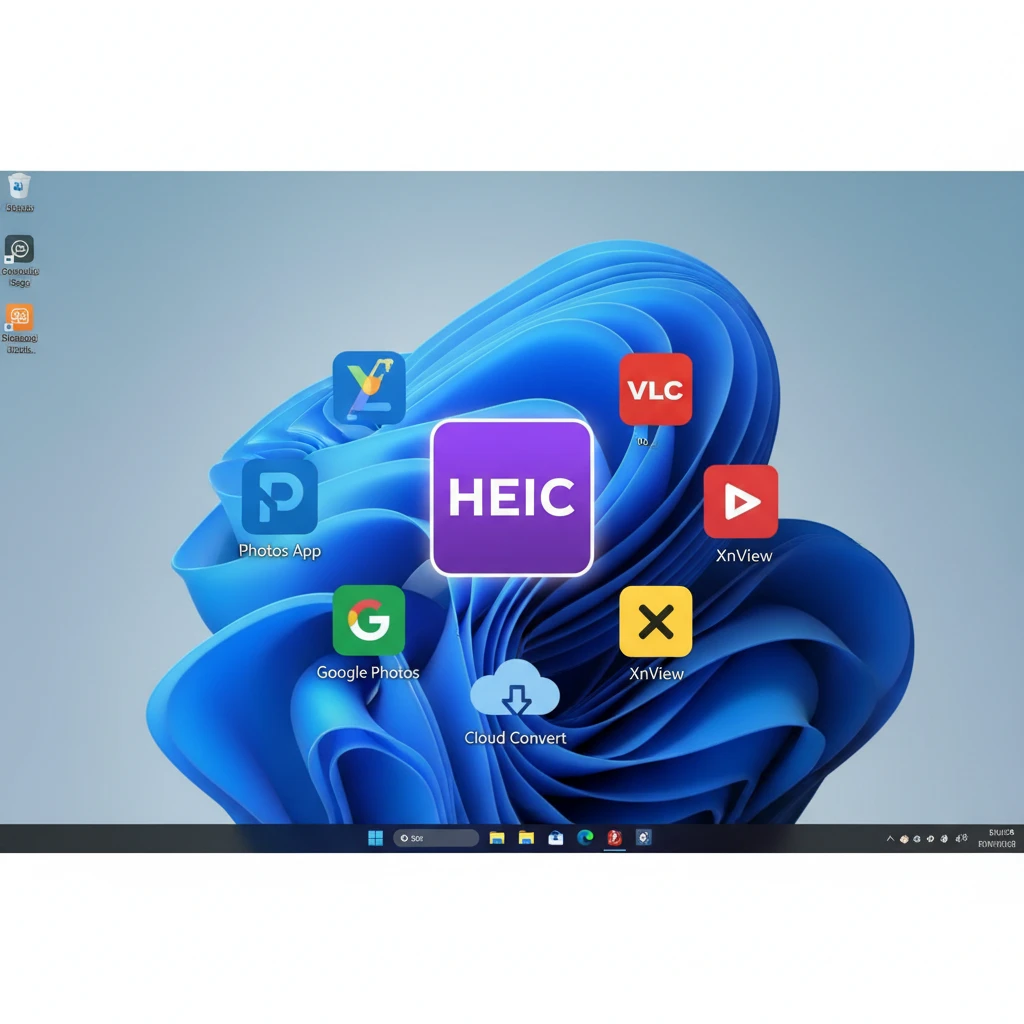
What Are HEIC Files?
HEIC (High Efficiency Image Container) files are Apple’s modern image format introduced with iOS 11 in 2017. These files use advanced compression technology to store high-quality photos while taking up 50% less storage space compared to traditional JPEG files. While HEIC offers superior image quality and smaller file sizes, Windows users often encounter compatibility issues when trying to view these files.
Why Can’t Windows Open HEIC Files by Default?
Windows doesn’t natively support HEIC files because Apple developed this format specifically for its ecosystem. However, Microsoft has made efforts to improve compatibility, and there are now several ways to view HEIC files on Windows computers without converting them to other formats.
Method 1: Install Microsoft HEIF Image Extensions
The easiest way to open HEIC files on Windows 10 and 11 is through Microsoft’s official extension:
- Open the Microsoft Store on your Windows computer
- Search for “HEIF Image Extensions” by Microsoft Corporation
- Click “Get” to download and install the free extension
- Restart your computer after installation
- HEIC files should now open in Windows Photos app
This method is completely free and integrates seamlessly with Windows Explorer, allowing you to preview HEIC files as thumbnails and open them with the default Photos app.
Method 2: Use Third-Party HEIC Viewers
CopyTrans HEIC
CopyTrans HEIC is a popular free plugin that enables HEIC support in Windows:
- Download CopyTrans HEIC from the official website
- Run the installer and follow the setup wizard
- After installation, HEIC files will display thumbnails in File Explorer
- Double-click any HEIC file to view it in Windows Photo Viewer
iMazing HEIC Converter
iMazing offers both viewing and conversion capabilities:
- Download the free iMazing HEIC Converter
- Install the software following the provided instructions
- The program adds HEIC support to Windows and includes conversion options
- You can view files directly or convert them to JPEG or PNG formats
Method 3: Convert HEIC Files to Compatible Formats
If you prefer working with more universally supported formats, converting HEIC files is an excellent option:
Online Converters
- Upload your HEIC files to websites like HEICtoJPEG.com or CloudConvert
- Select your desired output format (JPEG or PNG)
- Download the converted files to your computer
- These services are free but require internet connection
Desktop Conversion Software
- HEIC Image Converter by Aiseesoft
- Apowersoft HEIC Converter
- Tenorshare iCareFone
These programs offer batch conversion capabilities and work offline, making them ideal for processing multiple files simultaneously.
Method 4: Use Alternative Image Viewers
Several third-party image viewers support HEIC files natively:
- IrfanView: Free image viewer with HEIC plugin support
- XnView MP: Comprehensive image management software
- FastStone Image Viewer: Lightweight viewer with HEIC compatibility
- Adobe Photoshop: Professional editing software with HEIC support
Troubleshooting Common Issues
HEIC Files Not Opening After Installing Extensions
If HEIC files still won’t open after installing Microsoft’s extension:
- Ensure you’re running Windows 10 version 1903 or later
- Check that the HEIF Image Extensions are properly installed in Microsoft Store
- Try restarting your computer
- Update Windows to the latest version
Poor Image Quality After Conversion
To maintain image quality during conversion:
- Choose high-quality output settings (90% or higher JPEG quality)
- Use PNG format for images with transparency
- Avoid multiple conversions of the same image
Best Practices for Managing HEIC Files on Windows
- Install Microsoft’s HEIF Image Extensions for the most seamless experience
- Keep backup copies of original HEIC files before converting
- Use batch conversion tools when processing multiple files
- Consider cloud storage solutions that automatically convert HEIC files
- Update your image viewing software regularly for better compatibility
Conclusion
Opening HEIC files on Windows is no longer a significant challenge thanks to Microsoft’s official support and various third-party solutions. Whether you choose to install extensions, use conversion software, or employ alternative viewers, you now have multiple options to access your Apple device photos on Windows computers. The Microsoft HEIF Image Extensions remain the recommended solution for most users, offering free, native integration with Windows while preserving the original file format and quality.